

HTML – HYPERTEXT MARKUP LANGUAGE
The abbreviation HTML stands for Hypertext Markup Language. It’s the fundamental of coding/programming. With the help of HTML, we can create beautiful web-pages. Html consists of various elements, it tells the browser how to display the content. Below is the main html structure within which we create our whole web-page.
<!DOCTYPE html>
<html lang=”en”>
<head>
<meta charset=”UTF-8″>
<meta name=”viewport” content=”width=device-width, initial-scale=1.0″>
<title>Document</title>
</head>
<body>
</body>
</html>
Here we can see the elements such as <html>, <head>, <meta>, <title> and <body>. We will discuss further about html elements later.
HTML Professional Editors:
There are various editors we can use to run our html code, although if you are an absolute beginner, I would recommend you to start practicing html using Notepad++ text-editor. It’s simple to use for beginners. Now in order to find it in your PC, on your desktop, type in search bar (at bottom) Notepad++. A window will open, click Notepad++. It will bring you inside Notepad++ fresh page. Now write following code in here.
<!DOCTYPE HTML>
<html Lang=”en”>
<head>
<meta charset=”utf-8″/>
<meta name=”viewport” content=”width=device-width, initial-scale=1.0″/>
<title>NotePad++ HTML PRACTICE</title>
</head>
<body>
<h1>PRACTICE HTML WITHIN NOTEPAD++</h1>
<p>It’s HTML practice mode while using notepad++ text editor.</p>
</body>
</html>
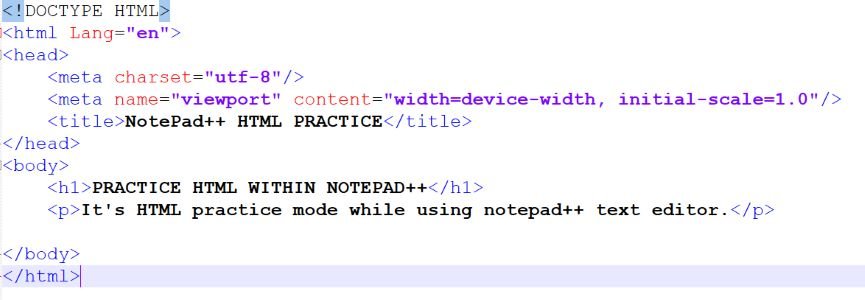
CONGRATS! YOU HAVE WRITTEN YOUR FIRST-FEW LINES OF CODE..
Here you can see we further add <h1> and <p> element. <h1> we use for ‘heading’ purpose whereas <p> we use for writing a paragraph. Note: The code we have wrote so far, here <meta> is the only element without a closing tag. Such elements are known as ‘Void Elements’. Now in order to save above code, firstly minimize this window by clicking – sign on top-right. Now on your computer anywhere for example in Downloads right-click your mouse, click ‘New’ from the window opens, click ‘Folder’. Now give your Folder a Name, eg: HTML-practice. Now click-open the Notepad++ window from bottom-bar that you minimized previously. Go to File (top-left corner), click ‘Save as’. The following window will open.
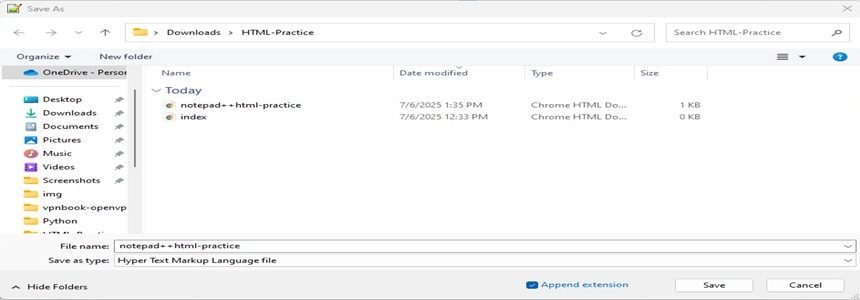
First click ‘Downloads’ from left, then click ‘HTML-Practice. That means Now you are saving your Notepad++ File INSIDE ‘HTML-Practice’ Folder you created in ‘Downloads’ section of your PC. Now below, give File-name: notepad++html-practice.html. Remember you can give any File-name, though you must include .html at end for a html-file. Now at bottom click ‘Save’. Now your Notepad++ file is saved inside the ‘HTML-Practice’ Folder you created in ‘Downloads’.
OPENING YOUR WEB-PAGE IN YOUR FAVORITE BROWSER:
To open your web-page in browser, click ‘File Explorer’ from bottom-bar at your desk-top. Click ‘Downloads’ from left. Find ‘HTML-Practice’ Folder and double-left-click. Now bring mouse-cursor on notepad++ file. Single left-click on File-name followed by single right-click, a tiny window opens; click ‘Open with’; another tiny window opens; click here over your favourite browser name for example: Google Chrome. Now your html-web-page will open inside your chosen browser.
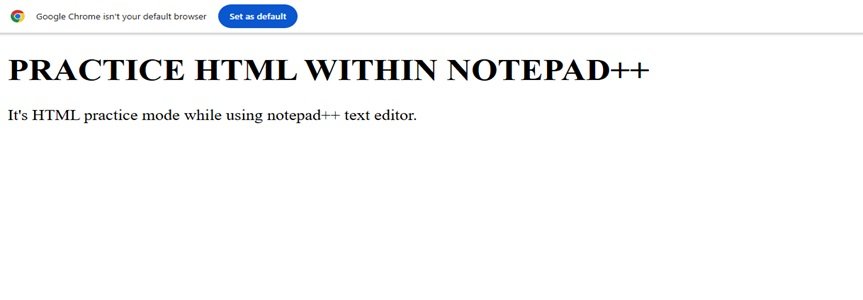
CONGRATS! YOU HAVE CREATED YOUR FIRST-EVER WEB-SITE..
You must be proud of yourself and don’t forget to celebrate your achievement!
Although here we created just a ‘Heading’ and a ‘Paragraph’ using html, we can add so many other things similarly in our web-page such as: images, links, buttons, forms and much more by using relevant elements. Read further about HTML-Elements in my next blog.
Keep learning.. have fun!